
IPTV on Mobile Hotspot
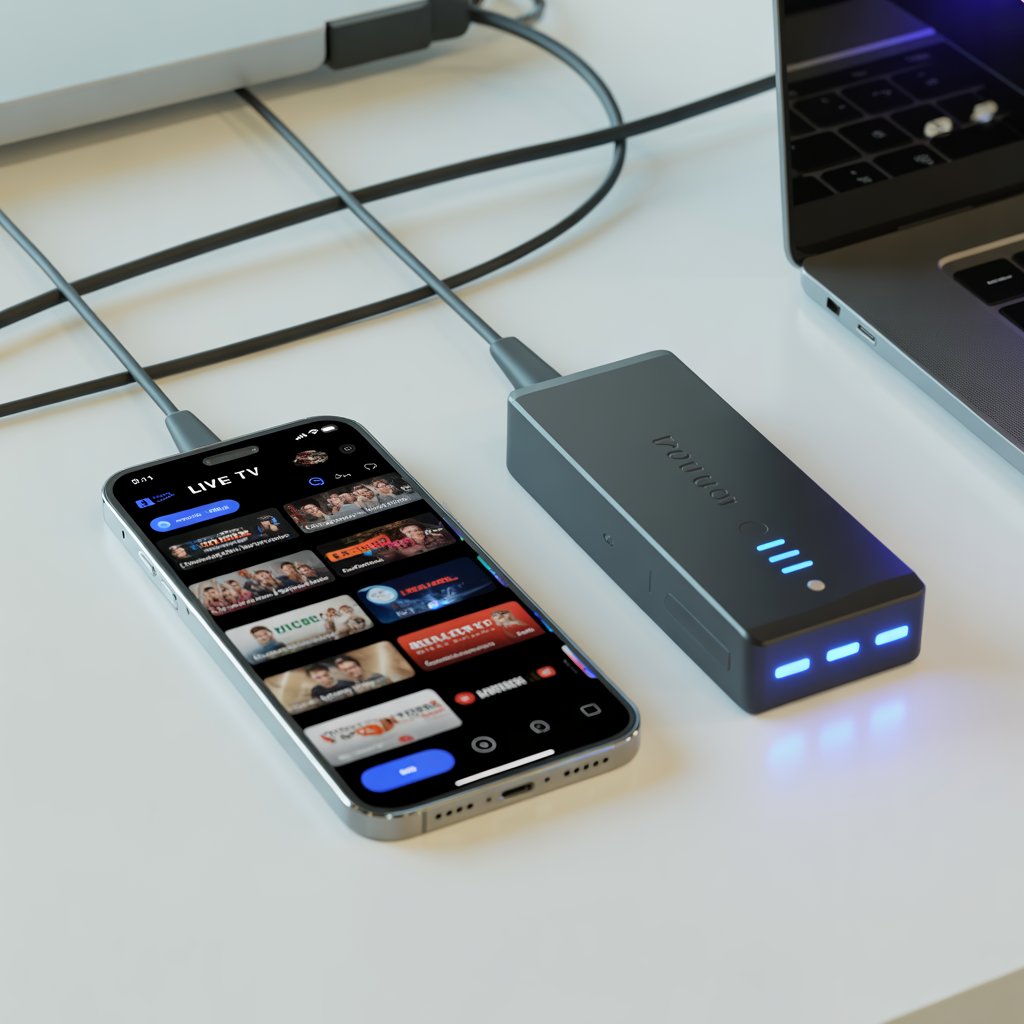
IPTV on Mobile Hotspot: How to Stream TV Anywhere with Stable Performance
Using IPTV on mobile hotspot means streaming live TV and on-demand channels through a cellular connection shared as Wi-Fi. It’s portable and convenient, but success depends on signal strength, bandwidth, and data allowances. This guide covers setup, optimization, data-savings, legal cautions, troubleshooting, and best-practice tips for consistent playback.
Watching IPTV on mobile hotspot allows you to access live channels, sports, and movies anywhere you have a cellular signal. This workflow turns your phone into a mini-router and connects your streaming box, smart TV, tablet, or laptop to the internet using mobile data.
What is IPTV and why use IPTV via a mobile hotspot?
IPTV (Internet Protocol Television) delivers television content over the internet rather than through satellite or cable. When you use IPTV via a mobile hotspot, your cellular provider becomes the access path instead of a home broadband connection.
This arrangement is ideal for travelers, temporary accommodations, outdoor events, or areas without reliable wired internet. It’s also a handy backup if your home broadband temporarily goes down.
Key requirements for successful IPTV over mobile hotspot
- Reliable cellular coverage (4G LTE recommended; 5G preferred for HD/4K).
- A data plan with enough allowance or an unlimited data option for heavy streaming.
- A device that can host a hotspot and remain powered while sharing (phone or portable router).
- An IPTV player/app or a compatible streaming device (Android TV, Fire TV, Smart IPTV, etc.).
Recommended minimum speeds
For stable playback without frequent buffering:
- SD (480p): ~1–2 Mbps
- HD (720p): ~3–5 Mbps
- Full HD (1080p): ~5–10 Mbps
- 4K: 25 Mbps or more (and a very stable 5G connection)
How to set up IPTV on a mobile hotspot (step-by-step)
Step 1 — Enable your mobile hotspot
Open your phone’s Settings → Network or Connections → Mobile Hotspot & Tethering. Enable the hotspot and configure a strong password.
Step 2 — Connect your streaming device
From your smart TV, streaming stick, or laptop, scan for the hotspot SSID and enter the password. Confirm the device is connected and has internet access.
Step 3 — Open your IPTV app
Launch your IPTV player (for example, IPTV Smarters, TiviMate, Smart IPTV). Add your subscription via an M3U playlist URL, user/pass (Xtream Codes API), or portal URL as provided by your IPTV vendor.
Step 4 — Optimize streaming settings
- Lower default resolution if you notice buffering.
- Enable any built-in data saver or adaptive bitrate options.
- Close background apps that may consume bandwidth on the host phone.
How much data does IPTV on a hotspot consume?
Data usage depends on resolution, codec, and bitrate. Below is a practical breakdown to help plan your monthly allowance.
| Quality | Approx. Data Per Hour | 2 hours/day (Monthly est.) |
|---|---|---|
| 480p (SD) | ~0.7 GB | ~42 GB |
| 720p (HD) | ~1.5 GB | ~90 GB |
| 1080p (Full HD) | ~3 GB | ~180 GB |
| 4K (Ultra HD) | ~7 GB | ~420 GB |
Note: Codecs like H.265 (HEVC) reduce data consumption compared to H.264 for the same visual quality. Some IPTV providers and apps support HEVC streams.
Tips to optimize IPTV streaming over a mobile hotspot
Applying a few practical improvements can significantly reduce buffering and improve picture quality.
1. Choose 5GHz hotspot band when available
5GHz offers faster local Wi-Fi speeds with less interference (shorter range). Use 2.4GHz only if you need range or for older devices.
2. Keep the host phone powered and cool
Hotspot sharing is power-hungry. Keep the phone plugged into a charger and avoid direct sunlight to reduce thermal throttling.
3. Use a dedicated data SIM or portable router
Using a separate SIM or a dedicated 4G/5G portable router avoids interruptions from calls and preserves your main phone’s battery and number.
4. Position for the best cellular signal
Place the host device near windows or high positions. If possible, test the spot with a speed test app (e.g., Speedtest by Ookla).
5. Consider a VPN for privacy and to avoid throttling
An optimized streaming VPN can help with ISP throttling or geo-restrictions. Use a reputable VPN provider that supports streaming and low-latency servers.
Data-saving strategies when using IPTV on mobile hotspot
- Stream at SD or 720p when mobile; reserve 1080p/4K for Wi-Fi.
- Disable autoplay and background downloads in apps.
- Use apps or system tools to monitor per-app data consumption and set warnings.
- Prefer HEVC streams if available; they are more data-efficient.
Common problems and fixes for IPTV on a hotspot
Buffering or frequent stalling
Possible causes: poor cellular signal, carrier throttling, or ISP congestion.
- Move to a location with better reception.
- Switch hotspot band (2.4/5GHz) or lower resolution.
- Try a different SIM or carrier if issues persist.
IPTV app won’t load channels
Possible causes: DNS or network blocking by the carrier, incorrect playlist, or provider downtime.
- Validate your M3U or portal credentials with the provider.
- Try alternate DNS (e.g., 8.8.8.8 or 1.1.1.1) on the streaming device.
- Contact your IPTV vendor for status updates.
Quick troubleshooting checklist
- Confirm hotspot shows internet access on the streaming device.
- Run a speed test on the connected device.
- Restart the hotspot and streaming device.
- Temporarily disable VPNs or proxies to test baseline performance.
Legal, safety, and etiquette considerations
Not all IPTV services are legal. Using unlicensed streams can risk malware exposure, account suspension, or legal consequences.
Do this: Prefer licensed, reputable IPTV providers with clear terms, or official streaming apps and services. Verify licensing and avoid free sources that distribute copyrighted content without permission.
For guidance on telecom rules and copyright, consult credible sources such as government telecom authorities or respected tech publishers. [Link to telecom authority guidance] and [Link to credible tech publication on IPTV legality].
When to choose mobile hotspot vs home broadband for IPTV
Use a mobile hotspot when portability matters. For heavy, daily streaming—especially in HD or 4K—home broadband (fiber/cable) is more economical and stable.
Mobile hotspot is best for:
- Travel or temporary stays
- As a short-term backup connection
- Outdoor or on-site events
Home broadband is best for:
- Regular family streaming
- Multiple simultaneous streams
- Cloud DVRs and downloads
Alternatives & enhancements for better mobile IPTV performance
If you rely heavily on mobile streaming, consider:
- Portable 4G/5G routers with external antenna ports for better reception.
- Unlimited or high-cap data plans from carriers marketed for mobile broadband.
- Network extenders or signal boosters (where legal and supported).
- Using a small dedicated streaming device near the hotspot to reduce Wi-Fi hops.
Frequently asked questions (FAQ)
Can I watch live sports on IPTV via a mobile hotspot?
Yes—if you have sufficient speed and data. Sports in HD typically need at least 5–10 Mbps for smooth playback. Make sure latency is low and your connection stable, especially for live events.
Will my carrier block or throttle IPTV traffic?
Some carriers may deprioritize or throttle video traffic during congestion. Using a VPN may help in some cases, but check your carrier’s terms of service to avoid violations.
Is hotspot streaming secure?
Hotspots are as secure as you make them. Always use a strong WPA2/WPA3 password, avoid open hotspots, and consider a VPN for privacy.
Useful tools and checks before streaming
- Speedtest app to measure real-time bandwidth.
- Data monitoring utilities on Android/iOS to track usage per app.
- IPTV player apps that support adaptive bitrate and HEVC.
- A portable battery bank if you can’t plug the host device in.
Suggested settings example (for an Android host + Fire TV)
Below is a compact suggested configuration to reduce buffering and data waste.
Hotspot password: strong WPA2
Fire TV: Set video resolution to 720p when using hotspot
IPTV app: Enable “adaptive streaming” or “data saver”
Phone: Disable background app refresh for non-essential apps
Resources and placeholders for further reading
Internal and external resources (replace placeholders with actual URLs when publishing):
- [Link to related article on IPTV for fiber internet]
- [Link to related article on best IPTV apps]
- [Link to telecom authority or ISP best practices]
- [Link to VPN provider guide for streaming]
Final checklist before you stream
- Confirm sufficient cellular signal and run a quick speed test.
- Connect streaming device to the hotspot and verify internet access.
- Set IPTV app to an appropriate resolution for your bandwidth.
- Monitor data usage and set alerts on your phone/carrier app.
Conclusion — is IPTV on mobile hotspot right for you?
In short: yes, if portability and short-term access matter. IPTV on mobile hotspot gives you flexibility and the ability to stream anywhere, but it comes with trade-offs: data usage, potential throttling, and variable signal quality.
If you only stream occasionally while traveling, a hotspot solution is excellent. If you stream daily in HD or higher, consider a permanent broadband setup like fiber or cable for cost-efficiency and consistency.