
IPTV m3u Playlist Editor
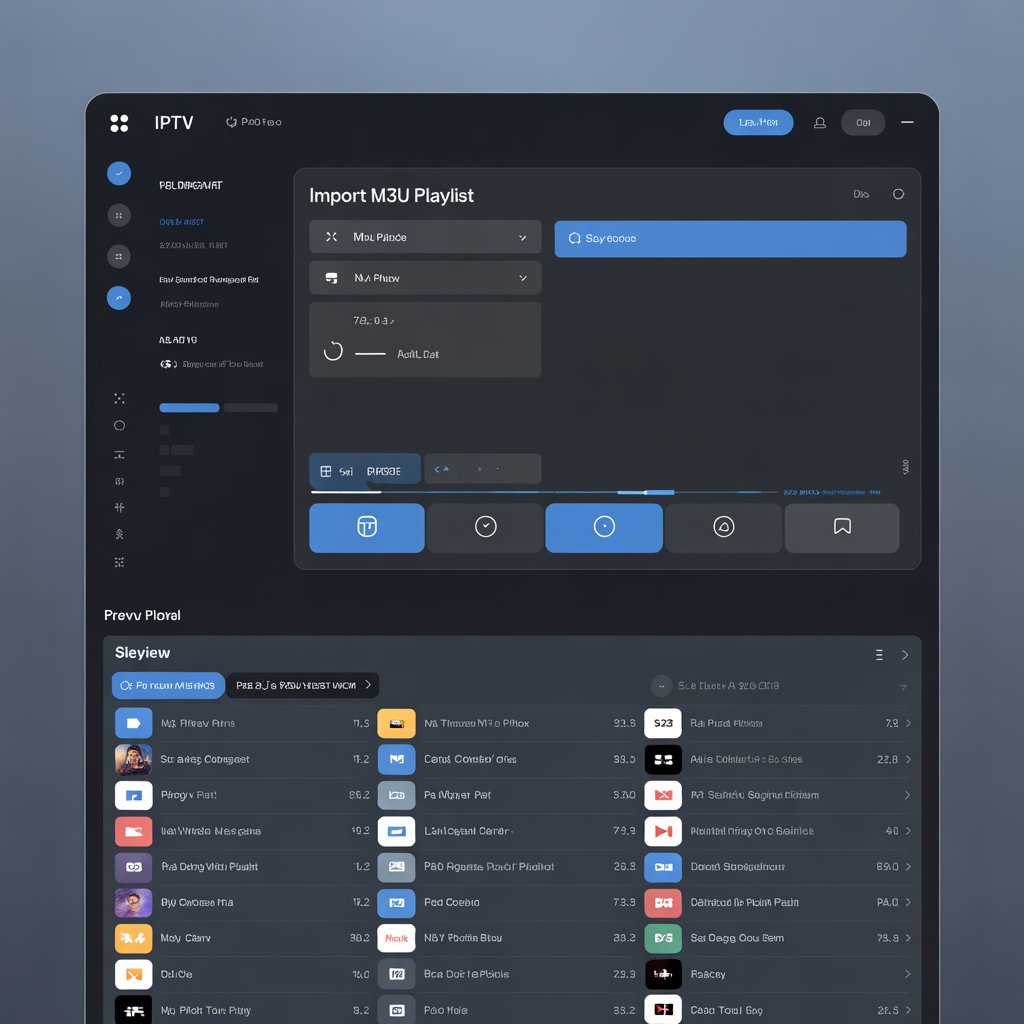
<!doctype html>
IPTV M3U Playlist Editor: The Expert 2025 Guide to Editing & Optimizing Playlists
Definition (quick): An IPTV M3U playlist editor is a tool—online or desktop—that lets you edit, clean, categorize, and optimize M3U files used by IPTV players, including channel names, logos, groups, EPG links, and stream URLs.
As an expert guide, this article shows exactly how an iptv m3u playlist editor works, which tools to choose in 2025, and step-by-step techniques to clean, merge, and optimize playlists so your streaming is faster and more reliable.
This guide is written for anyone who manages IPTV playlists—beginners who want a clean channel list, system admins who maintain many streams, and power users who need automation.
Why Use an IPTV M3U Playlist Editor?
Raw M3U files often contain duplicates, dead links, inconsistent naming, and missing metadata. An IPTV M3U playlist editor gives you direct control to fix these problems and tailor the playlist to your device or audience.
- Improve navigation and user experience
- Reduce device load by removing dead or duplicate channels
- Add logos and EPG for a polished interface
- Merge multiple sources into a single, maintainable file
How M3U IPTV Playlists Are Structured (Quick Technical Primer)
M3U playlists are plain-text files using #EXTM3U and #EXTINF tags. Each channel entry usually contains a metadata line followed by a stream URL. Understanding this structure lets you safely edit playlists with an M3U playlist editor or even with text tools.
#EXTM3U
#EXTINF:-1 tvg-id="channel.id" tvg-logo="https://site/logo.png" group-title="Sports",Channel Name
http://stream.server/path/stream.m3u8
Common M3U fields to edit
- tvg-id: identifier used for EPG matching
- tvg-logo: URL for channel logo
- group-title: category or channel group
- Stream URL: the actual video source
Top IPTV M3U Playlist Editor Tools (Online & Desktop)
There are both web-based and offline iptv m3u playlist editor options depending on privacy, speed, and features. Below are reliable choices and when to pick each.
Web-based M3U editors (fast, no install)
Web editors let you upload or paste an M3U URL, perform bulk edits, and export a cleaned file. They’re great for quick fixes and for users who prefer a GUI.
- M3U Editor Online — beginner-friendly: upload, edit, export.
- M3U4U — automated grouping, logo management, EPG mapping.
- IPTVEditor (premium) — bulk replace, preview, and export to M3U8/XMLTV.
Desktop & advanced editors (privacy & power)
For large playlists or offline workflows, desktop tools and advanced text editors are preferable. They offer scripting, regex, and local backups.
- Notepad++ — ideal for regex cleaning and bulk text operations.
- IPTVEditor Studio — GUI for channel reordering, group management.
- VLC (testing) — not an editor but useful to validate streams before finalizing.
Step-by-Step: How to Edit an M3U with an IPTV M3U Playlist Editor
The following workflow works with most editors. It balances safety and speed while ensuring compatibility with players.
1. Backup the original playlist
Always save a copy of the original M3U file before you modify anything. This prevents accidental data loss and allows rollback.
2. Load or import the playlist into the editor
Use file upload or paste the M3U URL. A good iptv m3u playlist editor will parse entries and show channels with metadata fields.
3. Remove duplicates and dead links
Many editors provide one-click cleanup: remove duplicate entries and test stream URLs to flag non-working links. Cleaning decreases the file size and speeds up navigation in players.
4. Reorganize groups and categories
Group channels by genre, language, or region. Change group-title values to create consistent menus within your IPTV app.
5. Add or correct logos and EPG identifiers
Update tvg-logo links and set correct tvg-id for EPG compatibility. Logos help users visually identify channels, and EPG makes schedules useful.
6. Export and validate
Export as M3U or M3U8 depending on your players. Test the exported file in VLC or your target IPTV app to ensure everything works as expected.
Advanced Editing Techniques for Power Users
If you manage large or dynamic playlists, advanced features save time and improve reliability.
Automated merging & deduplication
Use the editor’s merge feature to combine several playlists and auto-resolve duplicates based on channel name or tvg-id.
Backup streams and failover URLs
Add primary and secondary stream URLs for critical channels. When the primary fails, a player with failover support can switch automatically.
Regex-powered bulk edits
With a text editor like Notepad++ you can run regex to rename, reformat, or delete many entries at once—ideal for white-space cleanup, logo bulk-replacement, or removing advertising streams.
Troubleshooting Common Problems with M3U Editing
Editing can introduce issues if formatting or encoding is wrong. Below are frequent problems and fixes.
Playlist not loading
Ensure the file begins with the #EXTM3U header and that the file encoding is UTF-8. Broken headers or wrong encoding cause many players to reject the file.
Broken or unavailable channels
Broken channels usually mean expired or offline streams. Use a validator to test URLs and remove or replace non-working ones in your iptv m3u playlist editor.
Logos not showing
Use secure (HTTPS) image URLs where possible, and make sure the logo file is accessible publicly. Some players block HTTP assets due to mixed content restrictions.
EPG mismatch
Ensure tvg-id values match the IDs used by your EPG source. EPG mismatch is often a simple identifier naming issue.
Performance & Compatibility Tips
Optimizing an M3U reduces load times and improves the player experience. An expert-level M3U playlist editor workflow includes performance checks.
- Trim unused channels — smaller playlists load faster.
- Use direct, low-latency stream URLs when available.
- Prefer M3U8 for HLS-based streams for better compatibility.
- Cache logos locally on a server if you manage many users.
Legal & Safety Considerations
Editing M3U files is legal, but streaming copyrighted content without permission is not. Use only authorized streams and respect geolocation and licensing rules.
For compliance best practices, consult external resources and your local regulations. [External credible link placeholder: Link to digital streaming copyright guidelines]
Useful Workflow Examples
Below are two practical workflows based on common user needs.
Example A — Home user: small tidy playlist
- Upload M3U to a web editor.
- Remove dead links and duplicates.
- Group channels by language and favorites.
- Add EPG and logos for top 20 channels.
- Export and test in Fire TV or Android app.
Example B — Admin: multi-source master playlist
- Collect source playlists (sports, movies, local).
- Merge in an offline editor; resolve duplicates by tvg-id.
- Assign groups and add failover streams for key channels.
- Host logos on a secure server and point tvg-logo to HTTPS links.
- Automate nightly validation and re-export to M3U/M3U8.
Internal & External Resources (Placeholders)
Add these placeholders to connect readers to related content and authoritative sources.
- [Link to related article on IPTV apps]
- [Link to related article on meditation techniques]
- [Link to WHO report on mental health]
- [External credible link placeholder: Link to tech industry report]
Checklist: Final Pre-Export Validation
Run this checklist before distributing the playlist to users.
- Header:
#EXTM3Upresent at file start. - Encoding: file saved as UTF-8 without BOM.
- All stream URLs validated or flagged as backup.
- tvg-id and EPG sources matched.
- Logos use HTTPS where possible.
Wrapping Up — Why an IPTV M3U Playlist Editor Matters
Managing IPTV playlists is an ongoing task. A reliable iptv m3u playlist editor helps maintain quality, reduce support tickets, and deliver consistent UX across devices.
Whether you pick a web-based editor for speed or a desktop tool for control, follow the steps above and automate as much validation as possible.
Call to Action
Found this guide useful? Subscribe for more expert IPTV tutorials, or contact us to request a custom playlist cleanup. Leave a comment below with your playlist questions or ask for a tailored workflow.
Want me to convert this into a printable checklist or an editable template? Reply and I’ll prepare it for you.