
IPTV VPN Router Setup
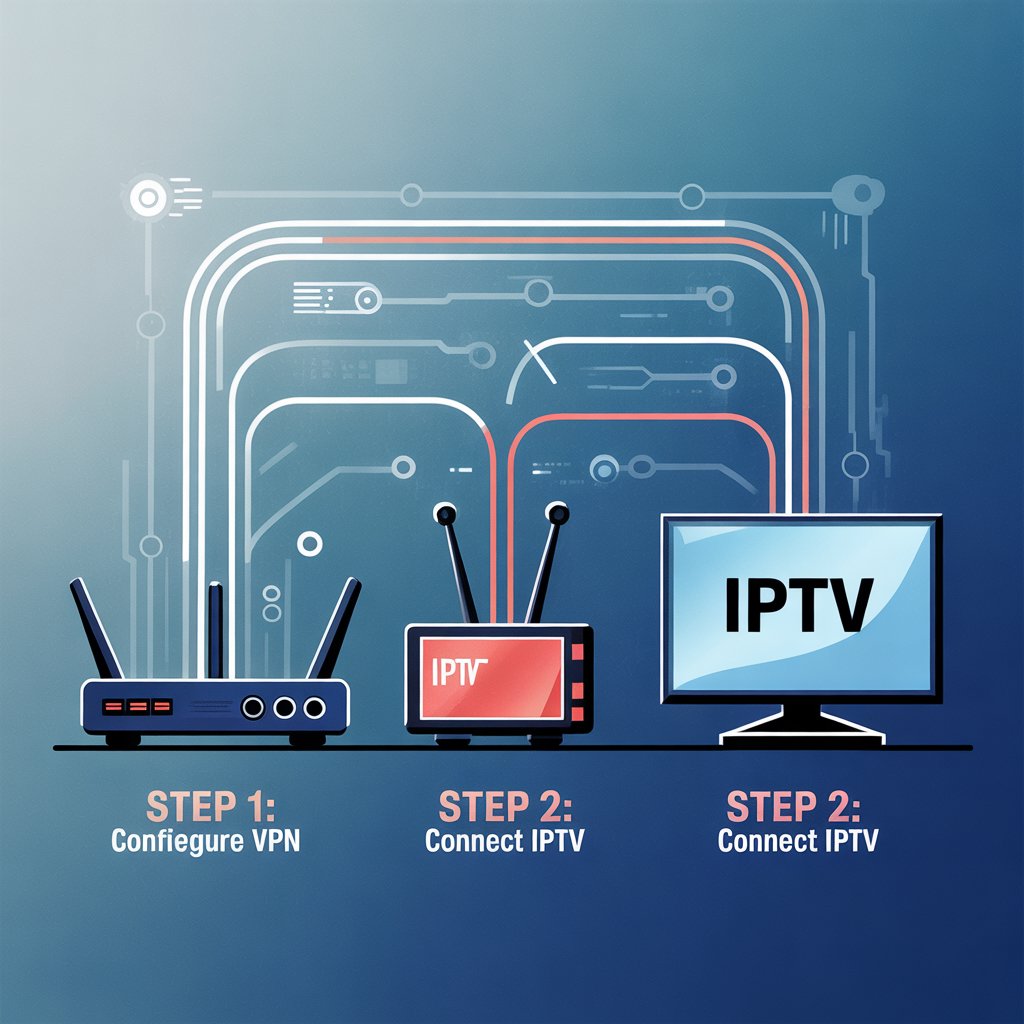
IPTV VPN Router Setup: The Complete 2025 Expert Guide for Secure & Smooth Streaming
IPTV VPN router setup refers to configuring a Virtual Private Network directly on your home router so every IPTV device (smart TV, Android box, Firestick, etc.) automatically streams privately, bypasses geo-restrictions, and avoids ISP throttling without installing a VPN app on each device.
Published: 2025
IPTV VPN router setup is the go-to solution in 2025 for anyone who wants secure, stable, and region-unlocked IPTV streaming. When you configure a VPN on your router, every device attached to your network benefits from privacy and unrestricted access—no separate app installations required. This guide gives you a step-by-step, expert approach to select compatible routers, choose a VPN provider, and optimize performance so you get buffer-free playback and better privacy.
Why an IPTV VPN Router Setup Matters
A quick look at what a router-level VPN gives you:
- Automatic protection for every device on your network.
- Ability to bypass geo-blocks and watch region-locked channels.
- Reduced risk of ISP throttling during streaming sessions.
- Consistent, always-on protection—no per-device app crashes.
Best Routers for IPTV VPN Router Setup (2025)
Not all routers support native VPN installation or have enough CPU to handle encrypted streaming. For reliable IPTV VPN router setup, pick hardware with a strong CPU and firmware that supports OpenVPN or WireGuard.
Top router choices
- ASUS (Best overall): Many models include native OpenVPN client support and strong CPUs.
- TP-Link (Budget-friendly): Good OpenVPN support on mid-range models.
- GL.iNet (Portable & VPN-optimized): Great for travel and small home setups.
- DD-WRT / OpenWRT (Advanced users): Flash custom firmware for full control and advanced features.
Step-by-Step IPTV VPN Router Setup
This walkthrough shows the most common configuration path: OpenVPN or WireGuard on a compatible router.
Step 1 — Choose a VPN provider compatible with routers
Pick a VPN that publishes router configuration files and supports modern protocols. Key features to look for:
- WireGuard and OpenVPN support
- Streaming-optimized server locations
- Router setup guides and config file downloads
- High bandwidth and minimal logging
Examples: NordVPN, ExpressVPN, Surfshark, CyberGhost — check their router guides.
Step 2 — Log in to your router admin panel
Open a browser and enter the router IP (common defaults: 192.168.1.1 or 192.168.0.1). Use your admin credentials and navigate to the VPN section. Always change default passwords first for security.
Step 3 — Upload VPN configuration files
Download .ovpn (OpenVPN) or WireGuard configs from your VPN provider and upload through the router’s VPN client interface. Many routers have an “OpenVPN Client” or “WireGuard” area in settings.
Step 4 — Connect to an IPTV-optimized VPN server
Choose a server based on the channels you want:
- UK server for British IPTV channels
- US server for American networks
- EU server for European sports and feeds
Step 5 — Connect IPTV devices to the VPN router
Connect smart TVs, IPTV boxes, Firesticks, and phones to the router’s Wi-Fi or Ethernet—no per-device VPN app needed. The router-level VPN secures them all.
Step 6 — Test IPTV apps and M3U playlists
Open your IPTV app (TiviMate, IPTV Smarters, OTT Navigator, etc.) or load your M3U playlist and test playback quality, channel accessibility, and buffering. If issues occur, try another VPN server or protocol.
Troubleshooting: Common IPTV VPN Router Problems & Fixes
IPTV app shows no channels
- Switch VPN server region to match the channel’s country.
- Try a different protocol (OpenVPN ↔ WireGuard).
- Clear app cache or reinstall the IPTV app.
Buffering or slow speed
- Use a closer or less-crowded VPN server.
- Prefer Ethernet instead of Wi-Fi for high-demand devices.
- Upgrade to a more powerful router if CPU is maxed out.
Geo-blocking still active
- Confirm the VPN server IP is not flagged by the IPTV provider.
- Clear DNS cache and restart router.
- Test with another server in the same country.
Best IPTV Apps to Use With a VPN Router
Router-level VPN works with any IPTV client. Popular, stable apps include:
- TiviMate (Android TV)
- IPTV Smarters Pro
- OTT Navigator
- Smart IPTV (SIPTV)
- XCIPTV Player
- StbEmu
[Link to related article on best IPTV apps]
How to Unblock IPTV Channels Using a VPN Router
Choose a VPN server in the target country and your whole home network will appear to originate from that country. A simple server switch will unlock regional streams across all devices.
- UK access: Connect router to London/Manchester servers.
- US access: Connect to a reliable US server.
- MENA/Arabic content: Use servers in Dubai, Morocco, or Egypt when available.
Advanced IPTV VPN Router Setup Techniques
Advanced users can tune performance and privacy using these options:
Split tunneling at the router level
Route only IPTV traffic through the VPN while keeping other devices on your normal ISP connection for best speed and latency.
Dual-router configuration
Use two routers—one with VPN enabled for IPTV, and one without VPN for general devices. This isolates traffic and maximizes speed for non-streaming devices.
Static IP & VLANs
Some VPN providers offer static IPs; a dedicated IPTV VLAN improves isolation and reliability on busy home networks.
Speed & Performance Optimization for IPTV VPN Router Setup
- Prefer WireGuard when available — it’s faster than OpenVPN.
- Use Ethernet for main IPTV devices to minimize Wi-Fi drops.
- Choose 5 GHz Wi-Fi for devices that support it.
- Reduce the number of concurrent, heavy devices during peak streaming.
- Avoid free VPNs; they lack throughput and optimized servers for streaming.
Frequently Asked Questions (FAQ)
Do I really need a VPN for IPTV?
While not strictly required, a VPN protects privacy, helps avoid ISP throttling, and unlocks region-restricted channels—making it highly recommended.
Will a VPN router cause buffering?
Only if the VPN server is slow or the router CPU is overloaded. With a good provider and proper hardware, buffering is minimized.
Can I use a VPN app on individual devices instead?
Yes, but router-level VPN is easier for whole-home coverage and is preferable if you want every device protected without app installs.
Internal & External Resources
Final Expert Tips for a Reliable IPTV VPN Router Setup
- Choose a router with a strong CPU if you run WireGuard/OpenVPN for multiple devices.
- Use a premium VPN provider with streaming-optimized servers.
- Test several server locations to find the lowest-latency, highest-throughput option.
- Prefer hardwired connections for the primary IPTV device when possible.
- Keep router firmware and IPTV apps updated to avoid compatibility issues.
Ready to secure your streams?
If you found this IPTV VPN router setup guide useful, take the next step:
Subscribe for more IPTV optimization guides
Want a tailored setup? Leave a comment below or contact us for a custom router configuration walkthrough.